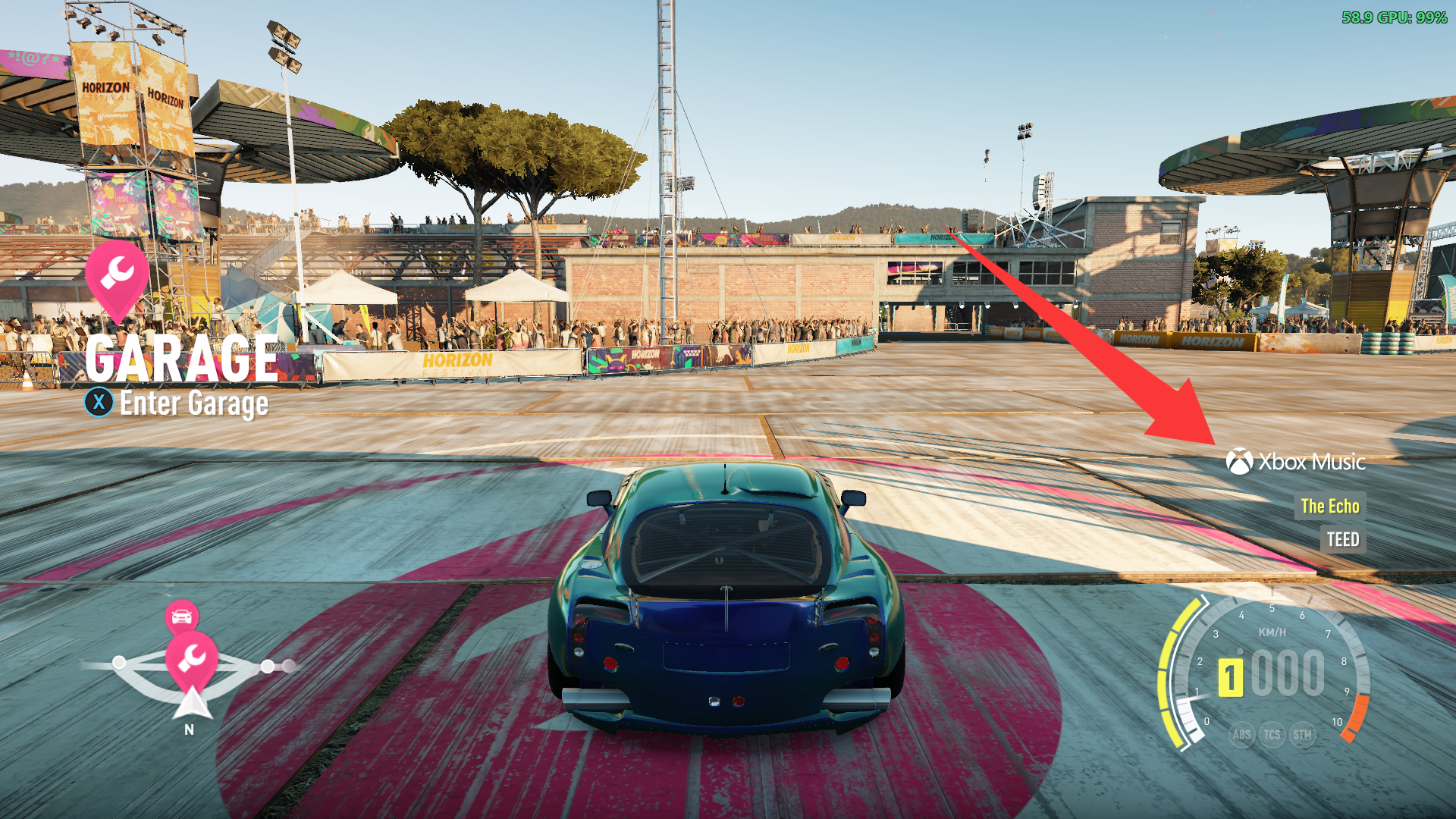
XBOX Music Radio
A Forza Horizon 2 (Azimuth) mod that turns on the radio's cut **Xbox Music** station and plays your own music on it.

I'm Not MentaL
- Approved by our team
- Verified creator: identity and work reviewed
- The file lives on github.com. You get a notice before downloading; we do not scan it.
- No pop-ups or fake download buttons on our site
Description
A Forza Horizon 2 (Azimuth) mod that turns on the radio's cut Xbox Music station and plays your own music on it.
On Xbox One, FH2 could play your Xbox Music playlists in the car. That service shut down years ago, and on PC the station was never available. This mod unlocks it and plays your music instead, chosen in the game's Audio Options as you would have chosen an Xbox Music playlist:- Your music files: a folder on your PC, each folder in it a playlist (MP3, FLAC, WAV).- Spotify (Premium), through Spotify's own Spotify Soloist player.- YouTube Music, NetEase Cloud Music and QQ Music, playing on your PC.
InstallExtract the release zip into the Azimuth folder (next to azimuth.exe):```DWrite.dll the FH2 Mod Platformfh2-mods\XboxMusicRadio.dll the modREADME.txt, README.zh-CN.txt this README, in English and ChineseLICENSE*.txt licenses```
> IMPORTANT> XboxMusicRadio.dll goes in the fh2-mods folder, the FH2 Mod Platform's. Don't put it in mods: that folder belongs to Extra Options and holds its plugins, and the mod won't load from there.
Start the game once. It makes an XboxMusicRadio folder next to azimuth.exe with XboxMusicRadio.ini.
Needs Azimuth 1.0.1 or later (it loads the platform as DWrite.dll). Spotify and the music apps need Windows 10 version 2004 or later (the mod records their sound).
Your music filesThe station plays the music in your Windows Music folder (C:\Users\<you>\Music, or wherever you moved it):```Music\ Night Drive\ a playlist called "Night Drive" 01 - Song.mp3 Artist - Song.flac Rock\ another playlist (subfolders included) Album 1\... loose.mp3 files right in Music\ make a playlist called "Music"```- Formats: MP3, FLAC and WAV.- With more than one playlist there's also All music, every song together. It's what plays until you choose one.- Titles and artists come from the files' tags. Without tags, from the file name: Artist - Title.mp3.- To use another folder, set folder= in XboxMusicRadio.ini, for example folder=D:\Songs or folder=%USERPROFILE%\Desktop\Songs.- New files and folders show up the next time you open Audio Options; no restart needed.
Playing1. In the car, switch the radio to Xbox Music.2. To choose what it plays: Pause > Settings > Audio Options, pick it under Xbox Music, and leave the page. Spotify and the music apps come first in the list, then your folders.3. F6 skips to the next song. You can change the key, or add a controller chord, on the Mods page.The game's own Horizon 2 Mix entry (the default Xbox Music playlist on Xbox One) plays all your music files.
The radio display shows the song and artist. It can only show plain letters: accents are dropped, and other scripts (Chinese, Japanese, ...) don't show there; the log has the full names.
SpotifyWith Spotify Premium, the station can play Spotify through Spotify Soloist, Spotify's own headless Spotify Connect player:
1. At developer.spotify.com/dashboard, open Spotify Soloist API Key and make a key. Put it after api_key= under [spotify] in XboxMusicRadio.ini. Keep it private.2. Download Soloist for Windows from Downloads and updates and put soloist.exe in the XboxMusicRadio folder. Spotify doesn't allow passing it on, so it isn't in the mod's zip. Soloist builds expire after 90 days; the log says when it's time for a new one.3. Start the game. Pause > Settings > Audio Options: choose Spotify under Xbox Music.4. In the Spotify app (phone or PC, same network), pick the device FH2 Radio and play anything. You only need to do this the first time: Soloist stays signed in, and from then on the station moves Spotify playback to FH2 Radio and starts it each time you switch to it (auto_activate=0 under [spotify] turns that off).
The mod runs Soloist hidden while the game runs and plays its sound on the station. Choose playlists and songs in the Spotify app. Soloist's own sound is turned down to -80 dB in the Windows volume mixer, so you only hear it on the radio. F6 skips, and Spotify pauses while you're on another station and carries on when you come back. Soloist's login, cache and log (soloist.log) are in XboxMusicRadio\soloist.
Music apps: YouTube Music, NetEase Cloud Music, QQ MusicThe station can also play what a music app on your PC plays. Each one is a playlist in Audio Options:
- YouTube Music: music.youtube.com in a browser (Edge, Chrome, Brave, Vivaldi, Opera, Firefox), or installed from the browser as an app- NetEase Cloud Music: the NetEase Cloud Music desktop app (cloudmusic.exe)- QQ Music: the QQ Music desktop app (QQMusic.exe)
1. Start the app and play something.2. Pause > Settings > Audio Options: choose it under Xbox Music. NetEase Cloud Music and QQ Music are listed once they're installed or running.
The mod records the app's sound for the station. While the radio plays it, the app's own sound is turned down to -80 dB in the Windows volume mixer, so you only hear it on the radio. It's put back as it was when you choose another playlist or close the game. F6 skips, and the app pauses while you're on another station and carries on when you come back.
- YouTube Music records the whole browser, so everything it plays is on the radio: keep other tabs quiet, or use a browser just for it (app=chrome.exe under [youtube] picks one).- YouTube Music and QQ Music work with Windows' media controls (the ones the media keys use), which give the song and take the commands.- NetEase Cloud Music doesn't, so the mod reads the song from its window title and drives it with its global shortcuts. Keep those on in NetEase's settings. If you changed them, set play_pause_key= and next_key= under [netease] to match, like next_key=Ctrl+Alt+Right.